Importing materials with AI
Most workshops arrive with a list already: a spreadsheet laid out in their own way, a page in a notes app, a photo of a stock sheet. Import with AI reads that list as it is and proposes your materials, so you do not have to retype it or rearrange it into a template first.
Find it on the Materials page, in the row of buttons above the table. The ? beside it explains it in a few lines.
What you can bring
- A spreadsheet (.xlsx or .csv) in any layout. Columns can be in any order and any language, and notes and totals in the sheet do not matter.
- Text pasted straight into the box, from a message, a note or a document.
- A photo or a PDF of a page, up to 10 MB.
A file is read up to its first 300 rows. If your list is longer, you are told, and you can import the rest in a second go.
The draft
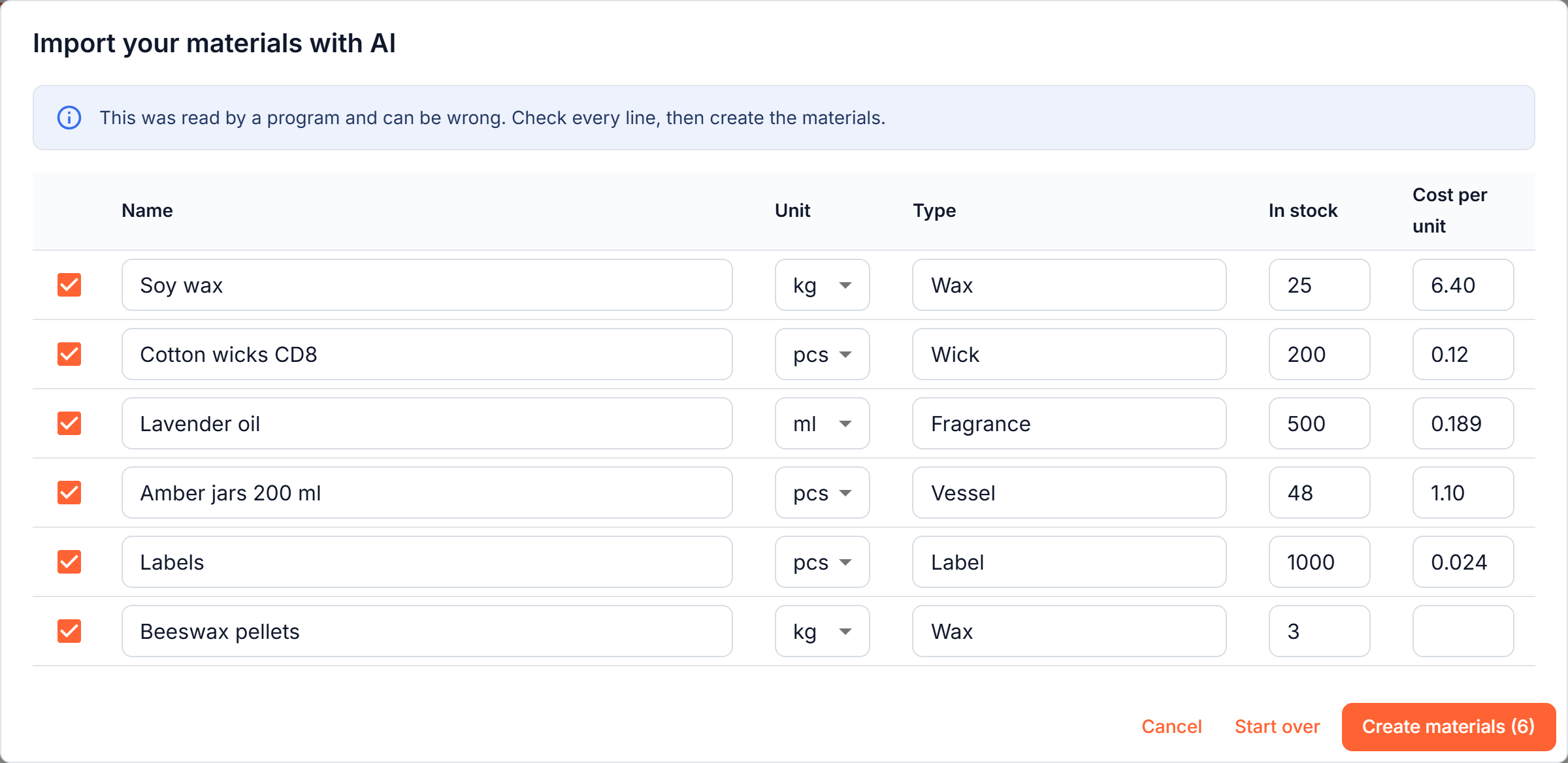
Press Read the list and in a few seconds you see a draft: one row per material, with its name as you wrote it, the unit, the type, how much you have and what one unit costs.
Some of the work is done for you:
- Units and prices are worked out. "500 g" for a material kept in kilograms becomes 0.5. A price for a pack ("1 roll = 500 pcs, 12 EUR") becomes the price of one piece.
- Types are reused. A material is given one of the types you already have when one fits, otherwise a short new one.
- Titles, totals and notes are left out. Only things that are materials become rows.
Everything in the draft is editable. Untick a row you do not want, fix a name, change a unit or a number, then press Create materials.
The list is read by a program, and a program can be wrong. Check every line before you create the materials.
Materials you already have
If a line looks like a material that is already in your list, even under another spelling, the row is marked You already have and is left unticked. Import with AI only adds: it never changes a material that exists. A line you tick anyway is skipped if its name or SKU is already taken.
To correct an existing material, edit it on the Materials page.
Stock and cost
The amount in stock and the cost per unit are saved as given in the draft, so what you see on the Materials page is what you checked. Materials with no amount start at zero. From then on, stock moves through purchases and stock audits.
Limits and your data
Import with AI is included in every plan, up to 10 lists per workspace per day. When the limit is reached you can still add materials one by one, and the limit starts again at midnight UTC.
Only the file or text you provide and the names of your existing materials are sent to Anthropic, our AI provider, which does not train its models on them. Details are in our privacy policy.