Scanning a receipt
Instead of typing a receipt line by line, take a photo of it. Masto Control reads the paper, proposes a receipt with its lines, and you check it and save. Nothing is saved until you press the button.
How to do it
- Go to Purchases and open a buying run. Above its receipts, press Scan a receipt.
- Choose a photo (JPEG, PNG or WebP) or a PDF, up to 10 MB. Reading takes 10 to 20 seconds.
- A draft appears. Check the top of it against the paper: supplier, number, date, the total, the VAT rate and amount, and whether the line prices already include VAT.
- Go through the goods lines (see below), fix anything that is wrong, and press Create receipt.
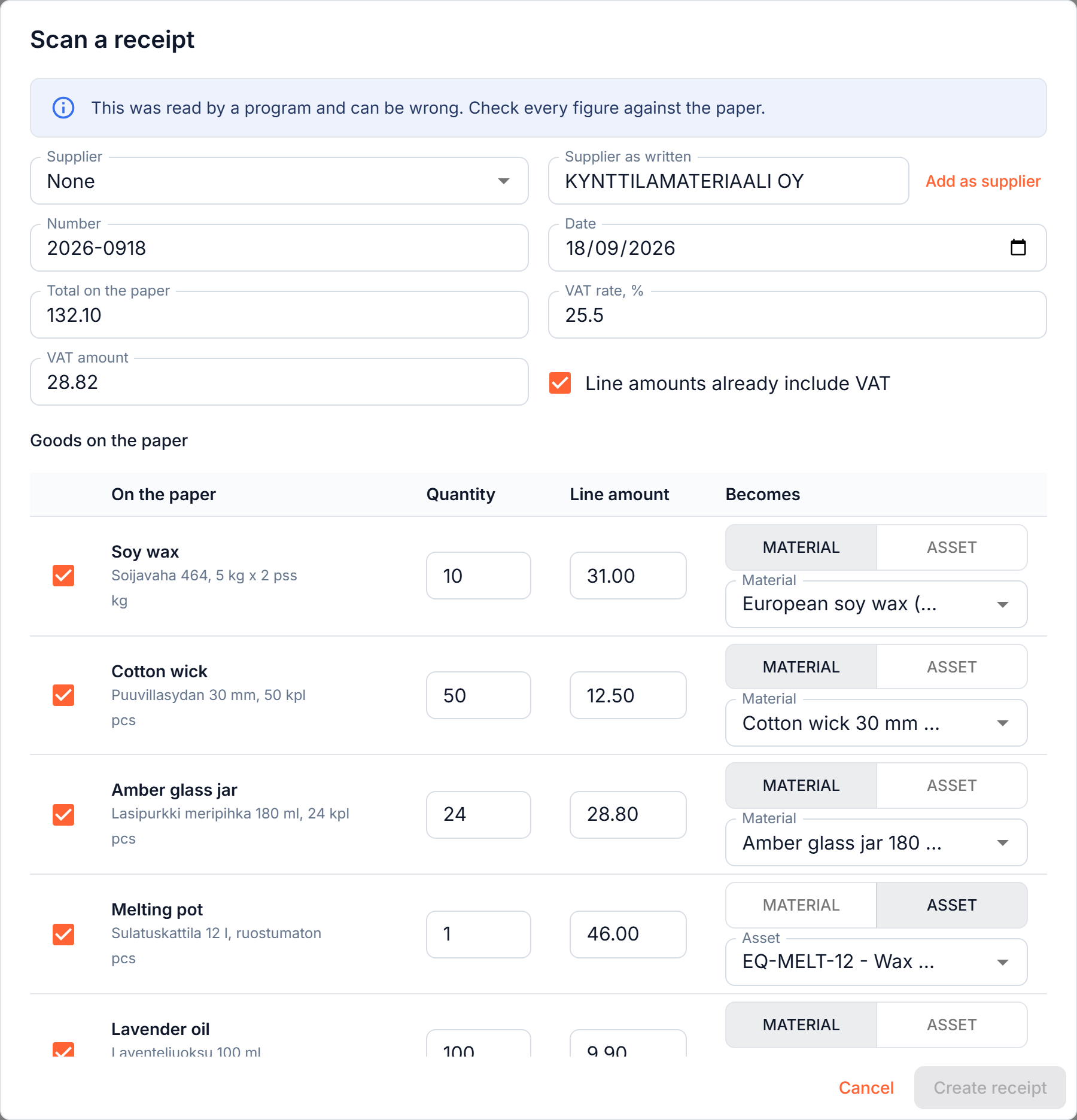
The receipt is created like any other: a draft receipt with its lines, its delivery and discount, and your photo attached to it. Post it as usual, see Purchases and receipts.
The paper is read by a program, and a program can be wrong. Check every figure against the receipt before you press Create receipt. The difference column on the receipt, which compares the paper's total with what the lines add up to, is a good second check.
What happens to each line
For every goods line you see:
- the name in your language, with the text as printed on the paper underneath, so a Finnish or German receipt reads in your interface language;
- the quantity and the line amount. If the paper sells in packs, the quantity is worked out in the unit of the material where it can be: two packs of 3 kg of wax for a material kept in kilograms comes out as 6;
- what the line becomes: a Material or an Asset (a tool). Machines and equipment are suggested as assets, anything consumed as materials. You can switch a line with the toggle.
The program looks for the material or asset you already have that means the same thing, even when the paper and your card are in different languages. When it is sure, the line comes filled in. When it is not, the picker stays empty and red, and it would rather leave a line unmatched than guess wrong.
A line with a tick is entered, a line without one is left out. A delivery charge or a discount is not a goods line: it goes to Delivery, discounts and other costs at the bottom, and becomes an expense line on the receipt.
When there is no match
You do not have to leave the dialog.
- A material or asset that does not exist yet: open the picker and choose New material or New asset. The form opens with the name already filled in, and what you create is picked for that line.
- A supplier that does not exist yet: press Add as supplier next to the name read from the paper.
What it costs and how often
Receipt scanning is included in every plan, up to 10 scans per workspace per day. Every scan counts, including one whose draft you throw away. The counter starts again at midnight UTC. When the limit is reached you can still enter receipts by hand, and scanning works again the next day.
Your data
Scanning is optional. Only when you press Scan a receipt, the file you chose and the names of your materials, assets and suppliers (so the lines can be matched to them) are sent to Anthropic, our AI provider. Under Anthropic's commercial terms that data is not used to train its models and is deleted from its systems within 30 days. Details are in our privacy policy.
Tips for a good read
- Lay the receipt flat, in good light, with the whole paper in the frame and the text sharp.
- A long till receipt is better as a PDF or as one straight photo than as several overlapping ones.
- One receipt per scan. If two invoices are in one photo, scan them one at a time.
- Handwriting and crumpled thermal paper read worst; expect to correct more there.
If it does not work
- "The receipt could not be read. Enter it by hand." The photo was unreadable or the service was busy. Try a sharper photo, or enter the receipt by hand.
- "The daily limit for reading receipts has been reached." Ten scans were used today. Enter this one by hand, or scan it tomorrow.
- "Receipt reading is not switched on for this installation." Contact support.