Shopify integration
The Shopify connection is not generally available yet — its App Store listing is still being worked on. This page is kept for workspaces already using it and is not listed in the menu or search.
Masto Control can connect to a Shopify store to sync product data, photos, and inventory, and to import paid orders as sales.
Connecting
Connect from within Masto Control (available today). Installing from the Shopify App Store is coming soon — the listing is under review.
Connect from within Masto Control
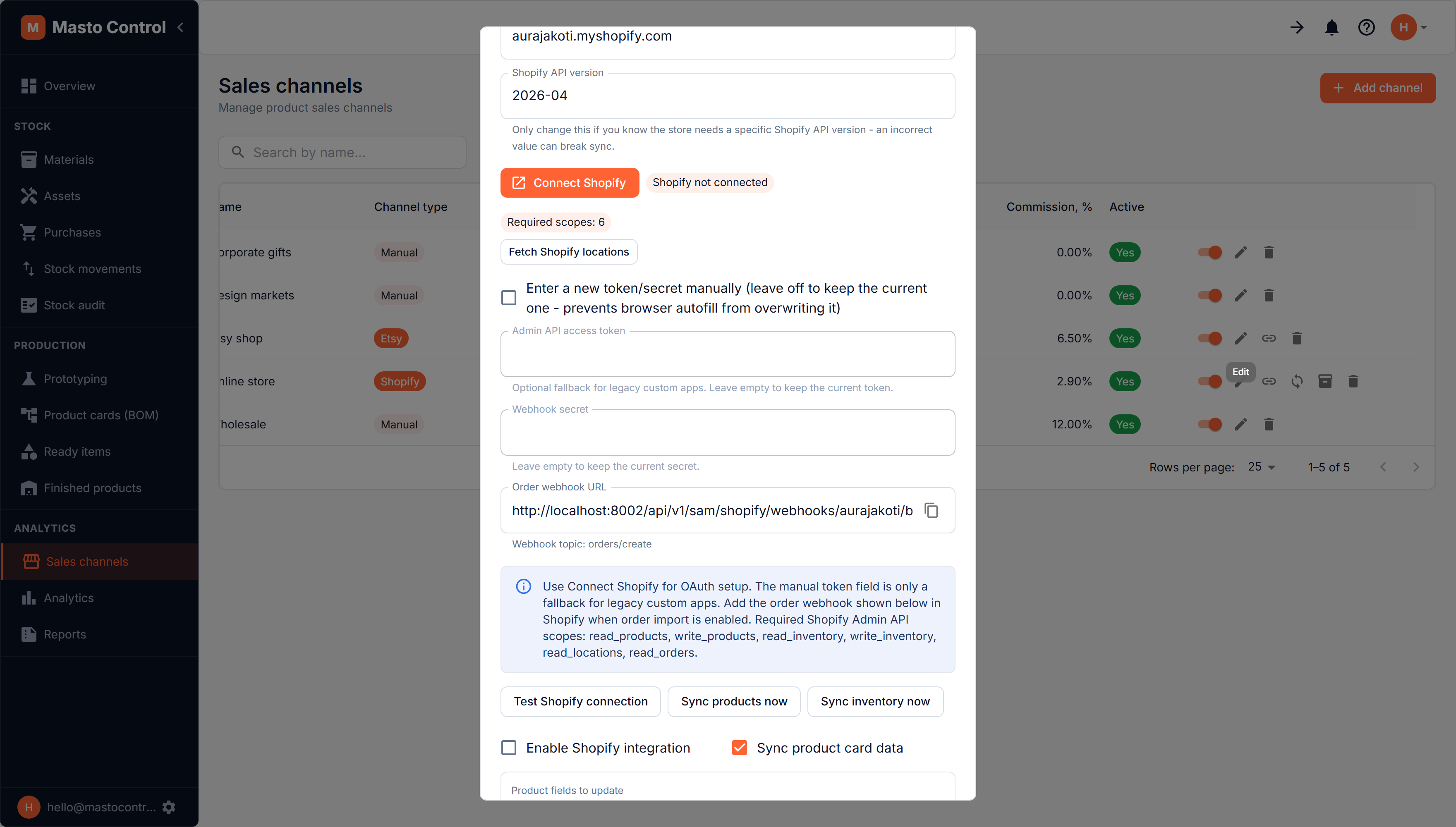
On a Shopify-type sales channel in Masto Control's own settings, click Connect Shopify. This runs Shopify's standard OAuth flow — you'll be redirected to Shopify to approve access, then back into Masto Control. No manual API token copying is needed.
Behind the scenes, Masto Control requests an expiring access token plus a refresh token (Shopify's current requirement — non-expiring tokens were deprecated). Tokens are refreshed automatically before they expire; you don't need to reconnect periodically. If a connection ever does go stale, use Reconnect Shopify on the same channel.
A manual Admin API access token field exists as a fallback for older custom-app setups, but OAuth via Connect Shopify is the supported path.
A store can only be linked to one Masto Control workspace at a time — reconnecting it from another workspace invalidates the older connection automatically.
Coming soon: install from the Shopify App Store
Once the Masto Control app is published on the Shopify App Store, you'll also be able to install it directly on your store and manage everything (location, product links, sync) from an embedded app inside Shopify admin — without visiting mastocontrol.com at all. This page will be updated when the listing is live.
What the connector costs
The Shopify connector is a paid plan, charged by Shopify alongside your other Shopify charges. You pick it inside the Masto Control app in your Shopify admin, and Shopify handles the checkout — Masto Control never takes payment for it.
That plan covers the connector only. Your Masto Control subscription is separate: it pays for the platform itself, works the same whether or not Shopify is connected, and is managed at mastocontrol.com.
While a store has no active connector plan, the app shows the plan picker instead of the sync settings, and syncing and order import stay paused. Everything already in Masto Control stays exactly as it is.
Picking a location
Inventory sync needs to know which Shopify location to publish stock to. Use Fetch Shopify locations to pull the list from your store and select one. This is required before inventory sync will do anything.
What syncs, and how to control it
Under the channel's Shopify settings, toggle independently:
- Sync product data — choose which fields to push: title, description, product type, price
- Sync product photos — pushes photos from the BOM card's description/photos tab; already-synced photos aren't re-uploaded on every sync (tracked per image, so you don't end up with duplicate photos piling up in Shopify)
- Sync inventory — publishes available finished-goods stock to the selected location
- Import orders — paid Shopify orders are received via a signed webhook and recorded as sales-channel activity, feeding analytics
Manual vs. automatic sync
You can trigger Sync products now / Sync inventory now at any time, or turn on automatic background sync to run on a recurring schedule (every 15 minutes by default) without you having to remember to click anything.
Linking products
Before product or inventory sync can work for a given BOM card, it needs to know which Shopify product/variant it corresponds to. Use Fetch Shopify products to load your store's catalog into the link picker, then either:
- Pick the matching product/variant manually, or
- Use Auto-match by SKU to link everything whose SKU matches automatically
A link can be linked (product + variant + inventory item all set), partial (some but not all), or not linked.
Products with options (variants)
A Shopify product with options such as size or colour has one variant per option, and each variant can get its own product card. One variant belongs to one card only — linking a variant that another card already holds is refused, so an incoming order is never ambiguous about which card it belongs to.
For a product split across several cards, Masto Control sends only price and stock, per variant. Title, description, product type and photos belong to the whole product rather than to any one variant, so several cards would overwrite each other; those you keep editing in Shopify.
Cancelled orders
Shopify tells Masto Control whether an order had been fulfilled when it was cancelled, and that decides what happens:
- Cancelled before fulfilment — the goods never left your workshop. Masto Control cancels the sale itself and puts the item, its materials, their reservation and its packaging back into stock, then notifies you that it did.
- Cancelled after fulfilment — the item left, and only you know whether it came back. Masto Control leaves the sale alone and notifies you to decide.
Masto Control also records the moment an order is marked fulfilled, so that decision never rests on what a cancelled order still reports about itself.
Webhooks & security
Inbound order webhooks are verified against Shopify's HMAC signature before being processed — unsigned or tampered requests are rejected. Masto Control subscribes to order creation, cancellation and fulfilment, and each subscription is scoped to just the fields it needs, so no customer names, addresses or emails are ever requested. The mandatory GDPR compliance webhooks (customer data requests, customer redaction, shop redaction) are implemented automatically; there's nothing to configure for any of this.
Troubleshooting
- "Fetch Shopify locations" or sync fails with an authorization error → use Reconnect Shopify to re-run OAuth and get a fresh token.
- Inventory sync does nothing → check that a location is selected and that the product link has an inventory item ID (not just a product/variant ID).
- Photos look duplicated in Shopify → this was a known issue with sync re-uploading every photo on every run; it's fixed, but photos uploaded before the fix may need manual cleanup in Shopify admin.